
Time Clock App
To install TimeClock, search from Timeclock on the Apple store or the Google Play Store. Or try the link below.
iPhone app
https://apps.apple.com/us/app/tcp-mobileclock/id1485910210
Android app
https://play.google.com/store/search?q=time%20clock%20plus&c=apps&hl=en_US
When you open the app, it will ask for a customer ID, enter: 108770
It will then ask for a ID number, that will be your Employee ID number:
Then it will ask for a PIN and that is your last 4 digits of your SSN.
After that you will be able to clock in and out from your phone while on campus.
BYOD Wifi Configuration Instructions
To connect to the Bring Your Own Device Wifi . Follow the steps outlined below.
Step 1. Go to your Wifi Settings and Select MISD-BYOD
To connect to the Bring Your Own Device Wifi . Follow the steps outlined below.
Step 1. Go to your Wifi Settings and Select MISD-BYOD
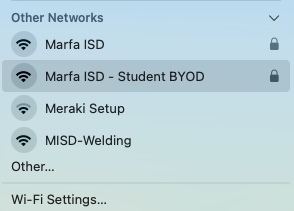
Step 2. Enter the password: welcomeback2026
Step 3. Log in with your school email at the LimeWize prompt. If the Linewize prompt does not appear, go to this website on your browser to log in. http://autologin.linewize.net/
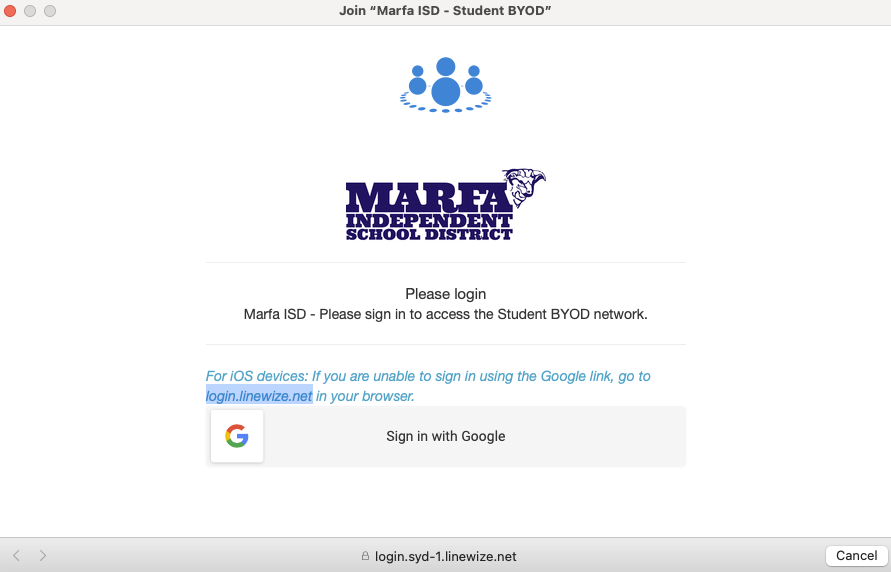
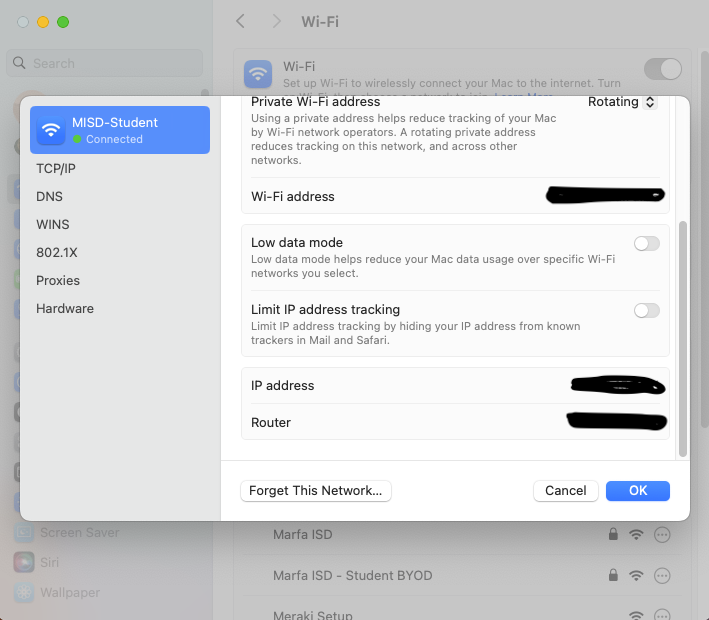
Step 3. Apple Device's: If you are using an apple device, you will have to select "Continue using network without Internet" and open a browser and go to the following link login.linewize.net and sign in. (You will also have to disable Limit IP address tracking for the internet to work.)
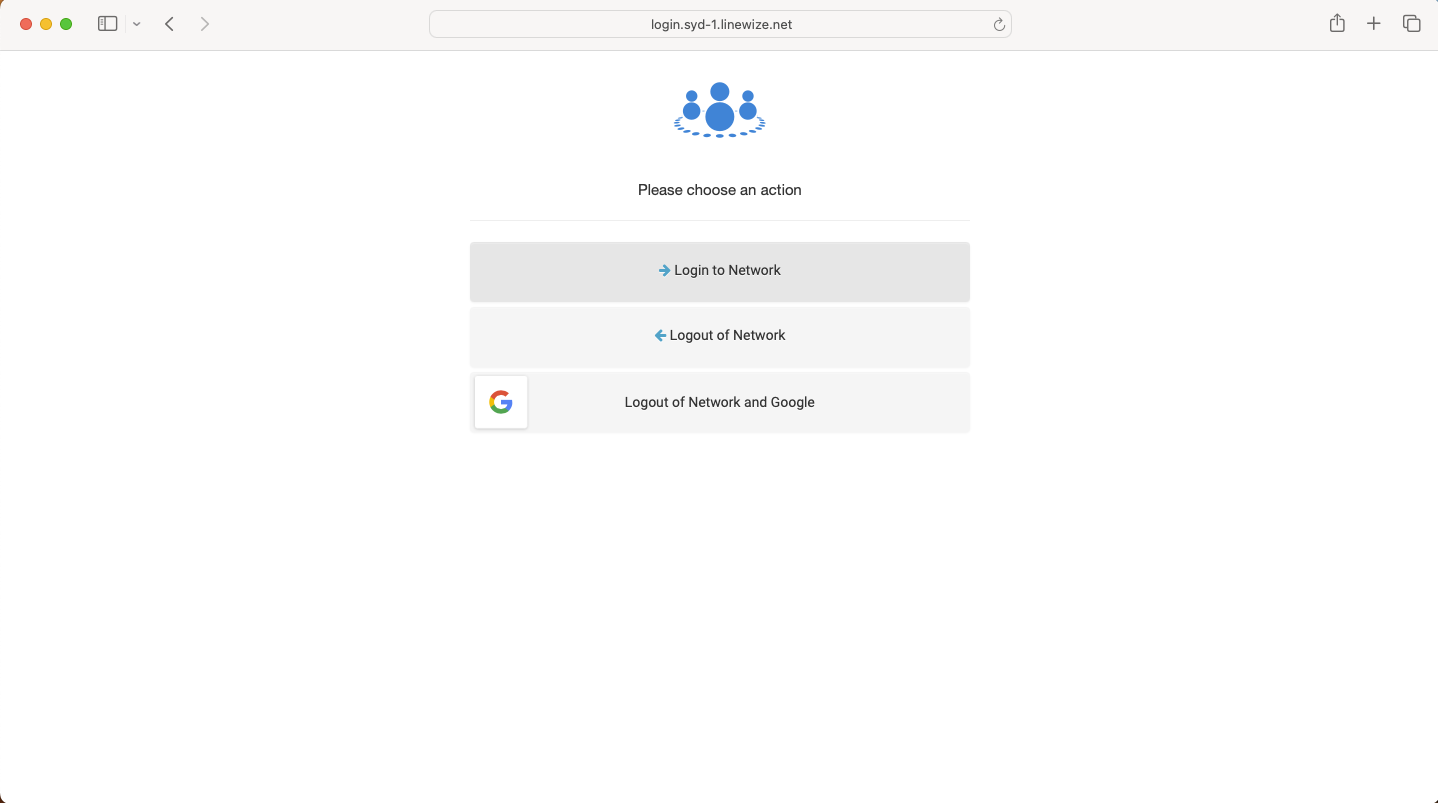
Done! If you logged in successfully, you will see the Marfa ISD homepage and will be connected.
Help!
If you need any help, please feel free to submit a ticket at techhelp.marfaisd.com